Does Zoom mirror my video for others?
No. Zoom mirrors only your self-view. The other people in the meeting, and Zoom’s recordings, always see the unreversed picture, whether Mirror my video is ticked or not.
Free · runs in your browser
Front cameras and video-call apps show you a reflection. Here’s what everyone else sees, and how to put a backwards recording the right way round. Mirror is already switched on in the tool.

Mirror is already on, so the preview shows it the right way round.Mirror is already on. Pick the clip from your photos or files.
Works with MP4MOVWebMMKVand more
Flipped on your device. The recording is never uploaded.
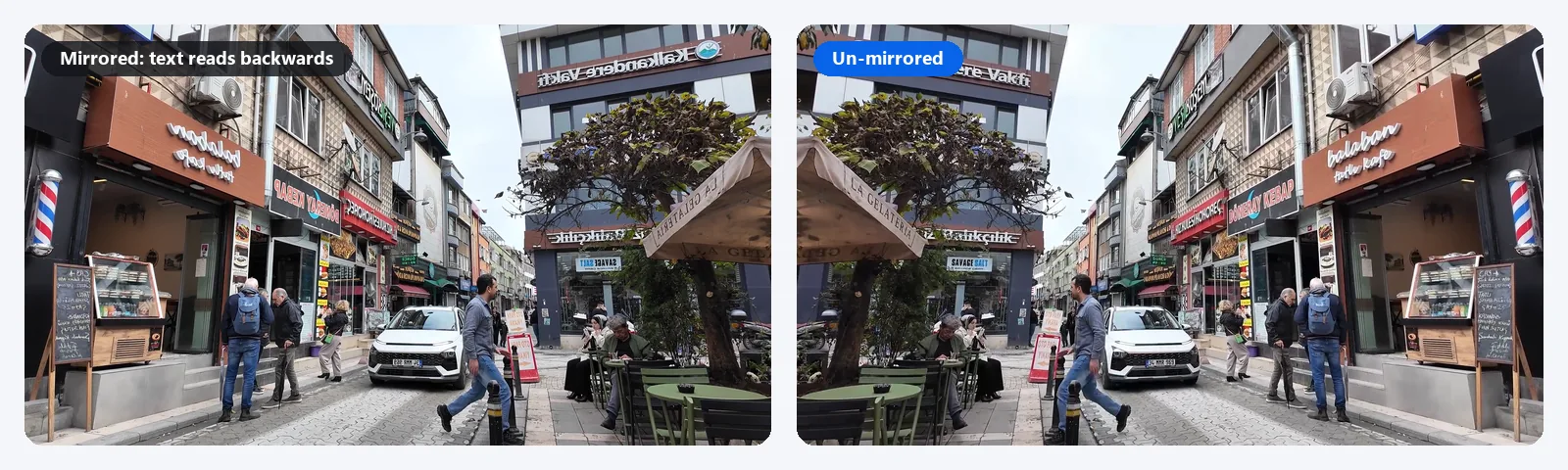
Short answer: your camera app or video-call app shows you a mirror image of yourself because that’s the face you know from the bathroom mirror. The other people on a Zoom, Google Meet or Teams call see you the right way round, and so do those apps’ own recordings. A video only needs fixing when the mirrored picture was saved into the file, which you can spot when writing in the background reads backwards.
To fix a recording like that, open it in the tool above. Mirror is already on for this page, so the preview shows the clip un-mirrored. Check a frame with text in it, then select Export video. To make a reflected copy of a normal clip instead, the mirror video tool starts with nothing applied.
 (enlarge image)
A backwards recording (left) and the copy exported with Mirror on (right).
Drop the recording onto the tool, or tap to pick it from your camera roll or files. Webcam recordings, screen captures and front-camera clips all open the same way.
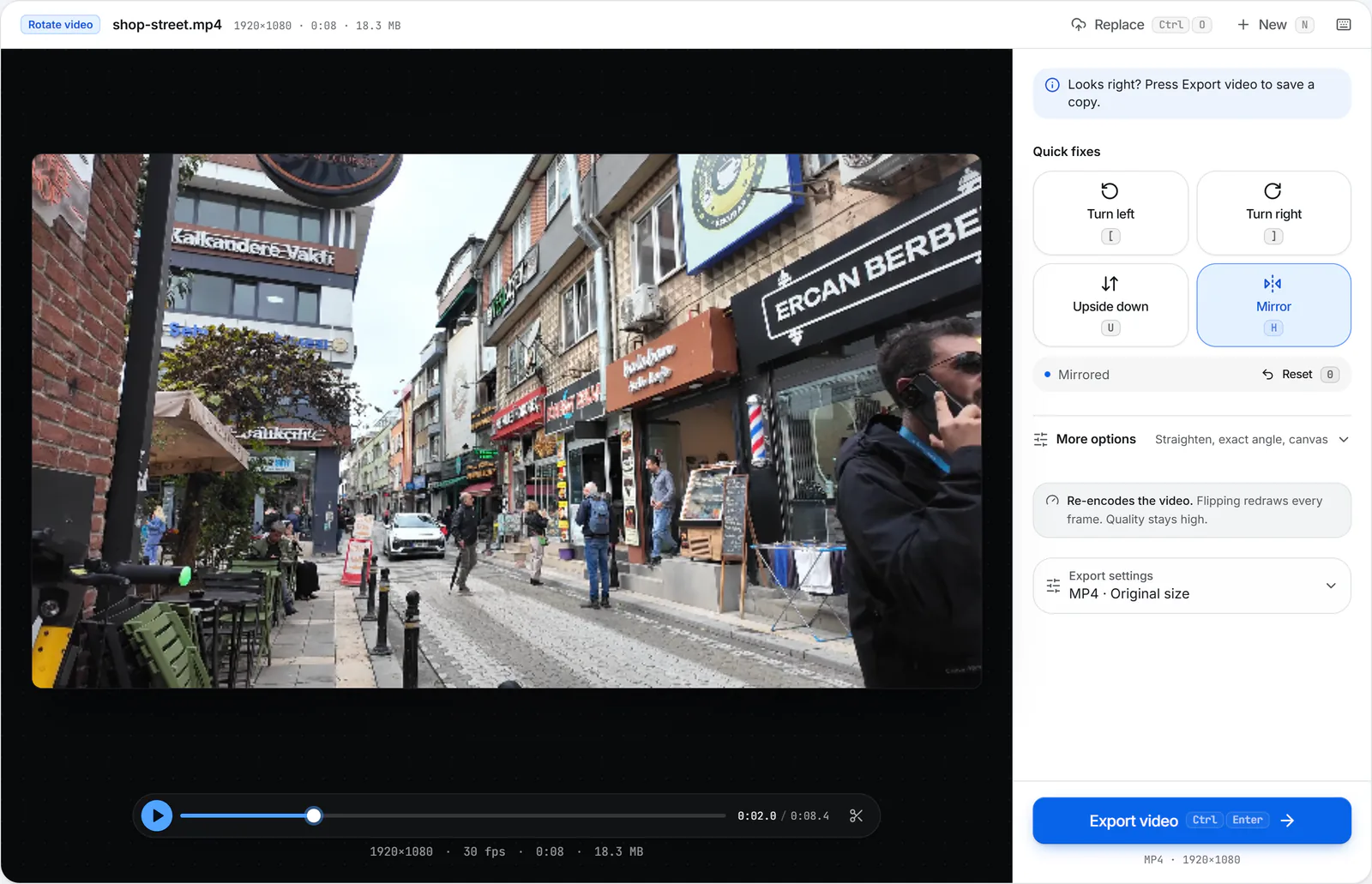
Mirror is already switched on here, so the preview is reflected left to right. Pause on a sign, a T-shirt slogan or a book spine: the letters should now read normally.
 (enlarge image)
With Mirror on, the sign in the preview reads the right way round.
If the text now reads backwards, the original wasn’t mirrored after all. Press Mirror again, or H, to turn it off.
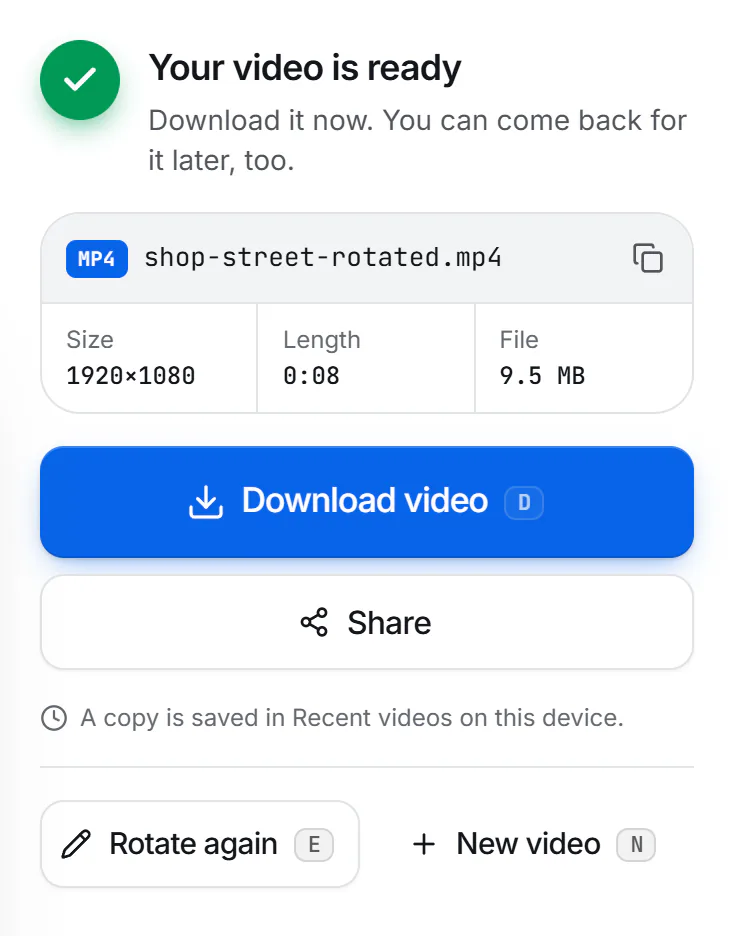
Select Export video, then Download video. On a phone, Share lets you save it to Photos or your gallery.
 (enlarge image)
The fixed copy keeps its size and length. Select Download video, or Share on a phone.
When you look at yourself, you expect the version you see in a mirror: your parting on the familiar side, your best side where it always is. A true, unreversed picture of your own face looks slightly odd to most people, so phone makers and video-call apps reflect the live preview to match. It also makes framing easier, because moving your hand to the left moves it to the left on screen.
That preview is a courtesy to you, not a record of what the lens saw. What happens when you press record, or when the picture is sent to someone else, is a separate decision that each app makes.
Zoom’s Mirror my video setting, under Settings → Video, changes only your own self-view. Everyone else in the meeting sees you unreversed however it’s set, and Zoom’s local and cloud recordings show you as the others saw you.
Meet reflects your own tile so it behaves like a mirror. The people in the call, and a Meet recording, get the true picture, so a poster on the wall behind you reads correctly for them even though it looks backwards to you.
Teams has a Mirror my video switch in its device settings, next to the camera preview. Like Zoom’s, it affects only what you see; the people you’re talking to always get the unreversed image.
So if you hold a page up to the camera and it looks backwards to you, don’t turn it round. It already reads correctly for everyone else.
Leave it on if the self-view feels natural and you mostly glance at it to check your hair or framing. Turn it off when you’re showing something with writing on it, such as a whiteboard, a product label or a page of notes, so your view matches the audience’s and you can point at things without your hand going the wrong way. Either way, it changes nothing for anyone else.
Recordings made by Zoom, Meet and Teams themselves aren’t mirrored, so a backwards clip almost always came from one of the routes above.
A horizontal flip reverses the whole frame, so it puts writing, logos and number plates right in one go. Everything else moves to the opposite side as well, which is the point: the scene goes back to how it really looked. You can’t un-mirror just the text and leave the rest; if only one sign needs to read correctly in a deliberately mirrored shot, that’s a job for an editor with masks.
Mirroring redraws every frame, so the clip is re-encoded at a high bitrate rather than copied. Set Quality to High under Export settings for the closest match to the original; rotating without losing quality explains which changes stay lossless. If the clip is sideways as well, fix both in one export with Turn left or Turn right. For top-to-bottom flips, see flip a video vertically.
No. Zoom mirrors only your self-view. The other people in the meeting, and Zoom’s recordings, always see the unreversed picture, whether Mirror my video is ticked or not.
Exactly the same as before. Mirror my video changes your own preview only, so ticking or unticking it makes no difference to anyone else.
The camera shows a mirrored preview so it feels like a mirror. Whether the saved clip keeps that reflection depends on Mirror Front Camera in Settings → Camera. Our iPhone guide shows how to flip a clip in Photos.
Apply a horizontal flip. On this page Mirror is already on, so open the clip, check that the text reads correctly, and select Export video. Flipping a mirrored clip again restores the original.
Only in your own tile. The people in the call, and Meet recordings, see you the right way round.
The frames are redrawn and re-encoded at a high bitrate, so the difference is very hard to see. Choose High under Export settings for the closest match.
No. Your browser reads, flips and saves the clip on your own device, so it never reaches a server.